
Help Center
Find answers to common questions, tutorials, and troubleshooting guides for LaunchMe.
Getting Started
Welcome to LaunchMe! This guide will help you get started with your new App Launcher for Mac.
IMPORTANT UPDATE
The Mac App Store version of LaunchMe may stop receiving updates. Apple’s policies and repeated rejection of our submissions make reliable App Store releases difficult right now.
Please download LaunchMe directly from our website. When you install the new build, all your settings and layouts stay in place.
If you purchased Lifetime PRO on the Mac App Store, email team@launchmeapp.com and we will activate PRO in the direct-download version for you.
If you prefer to keep using the Mac App Store version for now, follow the setup instructions below.
Installation
LaunchMe is available on the Mac AppStore. Simply download and install the app to begin customizing your app launcher to bring back Launchpad experience.
First Launch
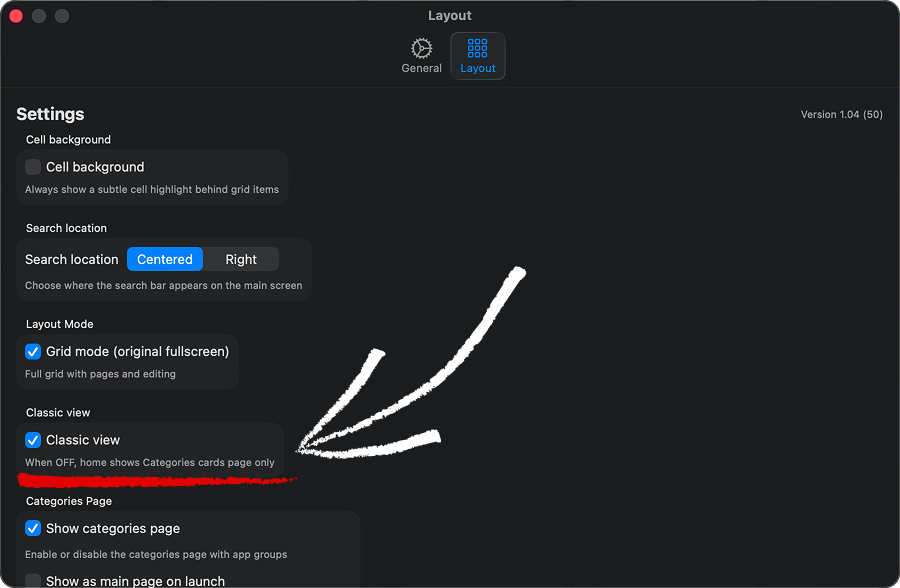
When you first open LaunchMe, you'll need to change one setting to get "Classic View" like Launchpad had before the macOS 26 Tahoe update.
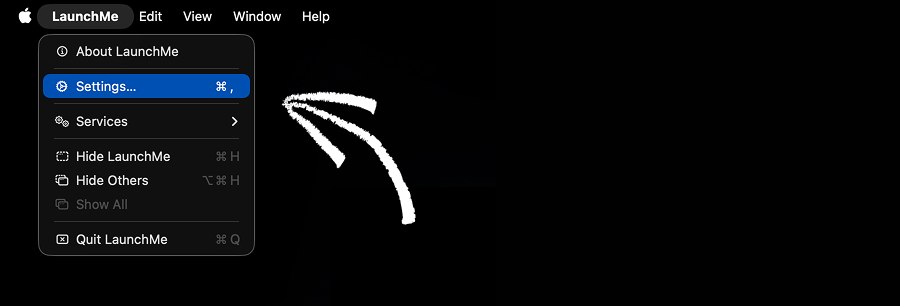
First open LaunchMe and click on the burger menu in the top right corner. Then in the opened toolbar click "Settings". You will see a toggle in the Classic View section. Enable it and LaunchMe will show all your apps in a grid automatically. Then you can start customizing the app, add widgets, etc.
In "Settings" you can also disable the X mark "Hide button" and align Search in the center of the window. You can also disable the page with "Categories Cards" or change settings to not show it when you invoke LaunchMe and show your apps page instead.
Explore the settings panel to see all features and settings you can use to make LaunchMe a perfect workspace and app manager.
Key Shortcuts
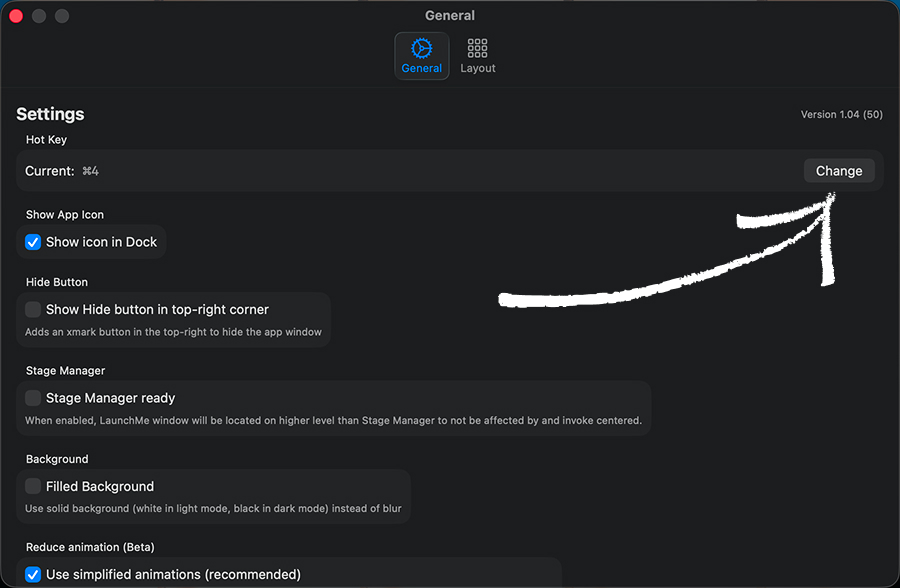
By default you can invoke LaunchMe with "command 4" key shortcut. But you can change it to any keys you want.
Open "Settings" and click "Change" in "Hot key" section. Then simply press keys you want to use to invoke LaunchMe.
Layout
Learn how to shape your LaunchMe workspace. Move apps freely, create the exact layout you want, and keep multiple layouts saved for different workflows.
Move icons in Edit Mode
In LaunchMe you can place apps in any cell you want and make your own layout style.
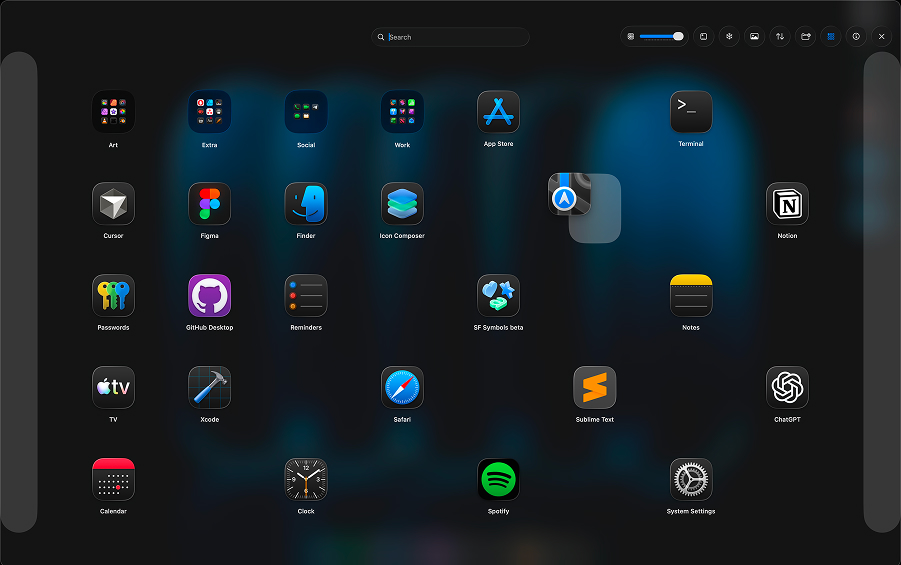
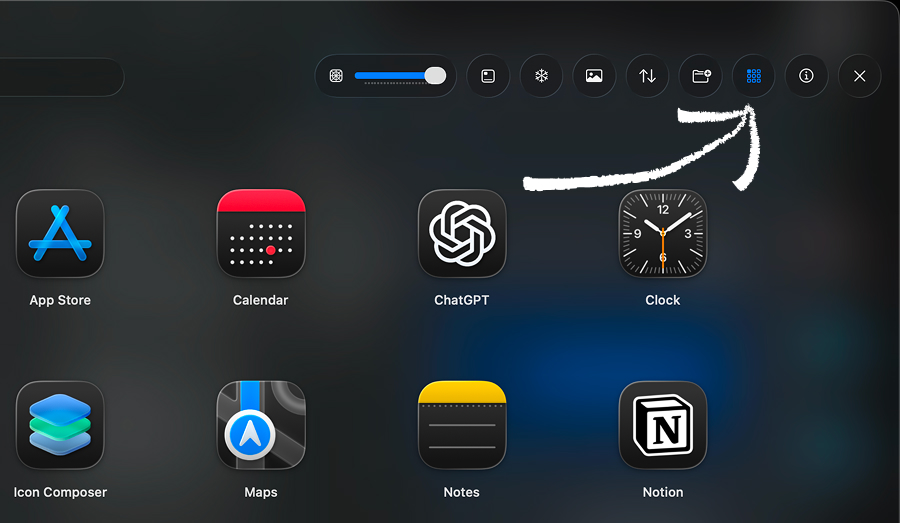
To start editing the layout, activate “Edit Mode” in the top-right menu. The button changes color to show that edit mode is active. You can now drag Apps, Folders, and Widgets anywhere on the page. Need to move something to another page? Drag it onto the highlighted area.
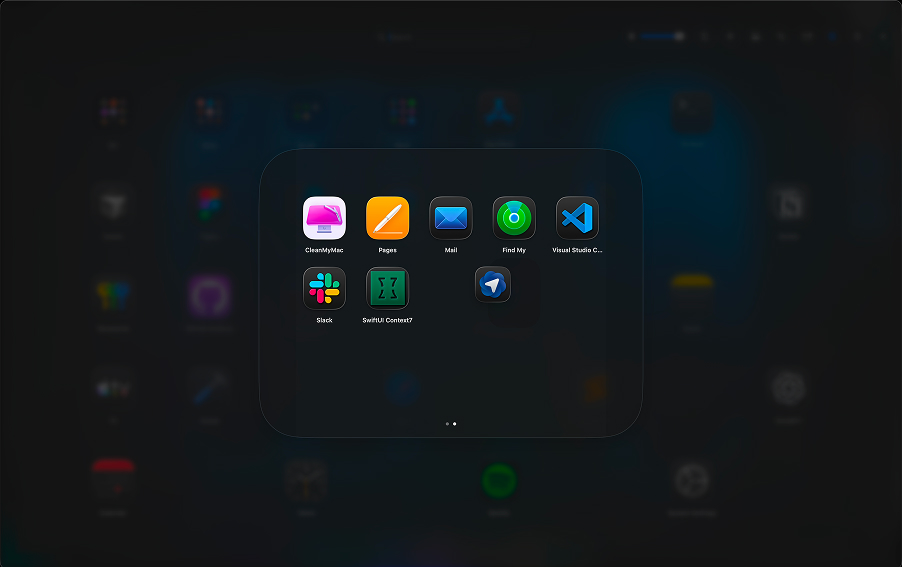
While you are in Edit Mode, you can open folders and move apps between pages. Just drag and drop items onto the highlighted page switcher.
Save Layout
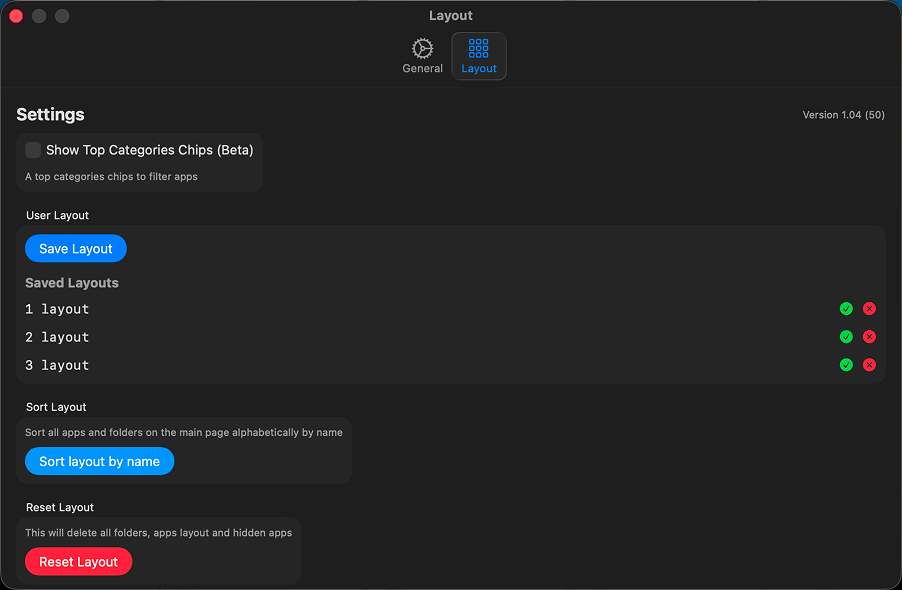
You can save your layout in “Settings” to restore it later or keep different layouts for different tasks.
Hide apps
Right-click any app and choose “Hide app” to keep your main grid clean. Hidden apps stay searchable and appear inside the Hidden folder on the Categories page.
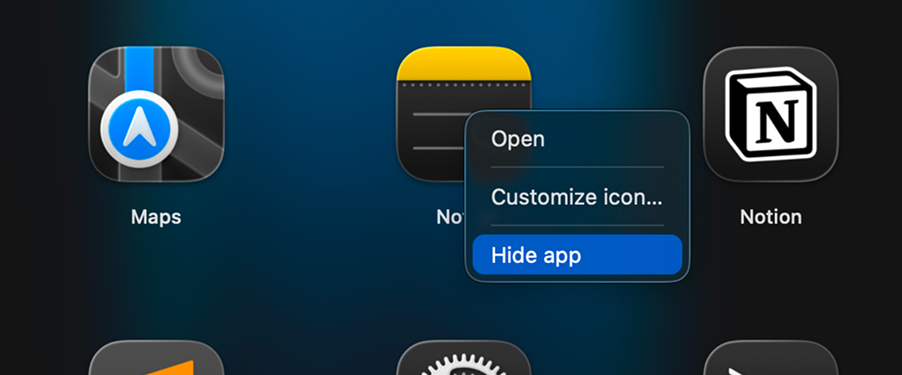
Folders and Files
Organize everything with folders. Add apps, connect Finder folders, and keep your workspace tidy while staying one click away from important files.
Create folders
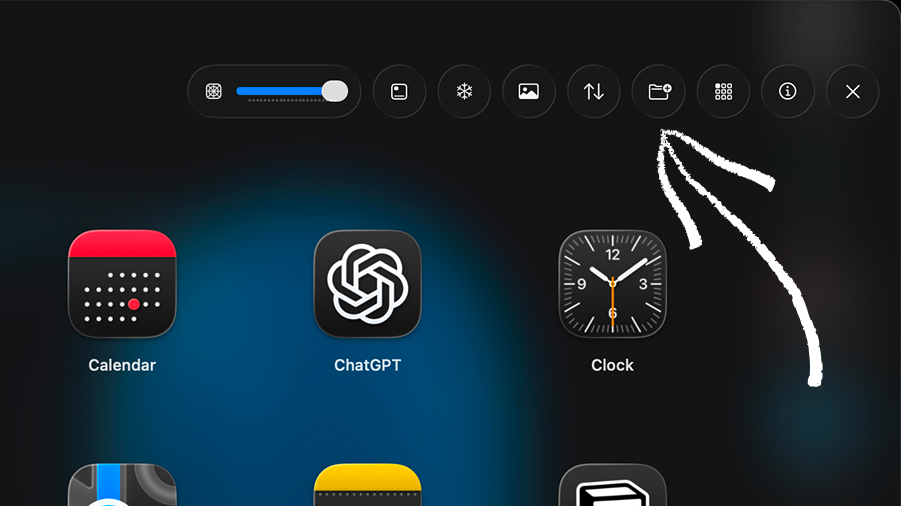
To create a new folder, click the “Create Folder” button in the top-right menu.
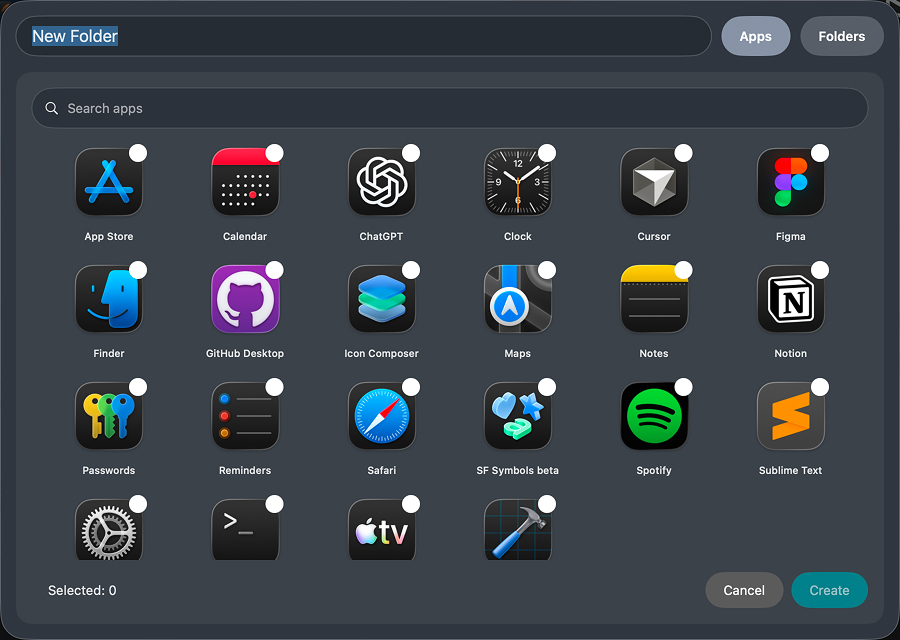
Type the folder name, select the apps you want to add, and click “Create”.
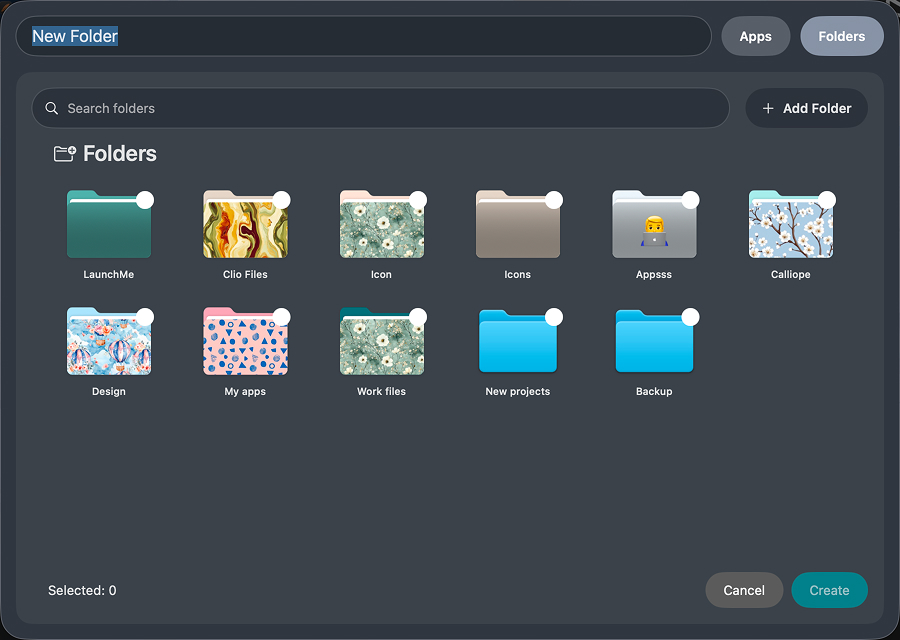
“Finder Folders” quick navigation
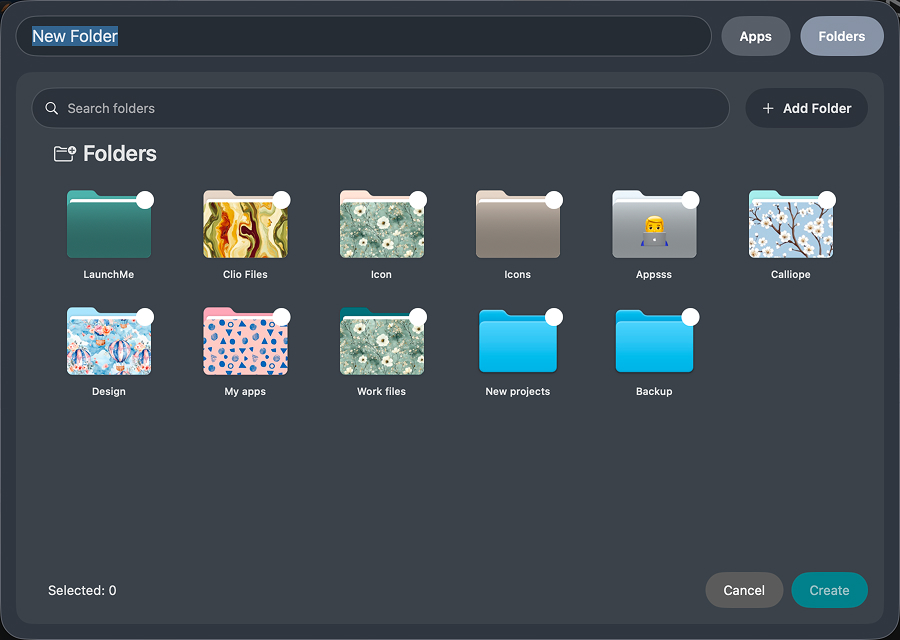
Add any Finder folder for instant access from LaunchMe. When creating or editing a folder, go to the “Folders” tab and click “Add Folder”. Choose any Finder location and it appears in the list. You can customize these file-folder icons in the “Files Folders Customization” guide.
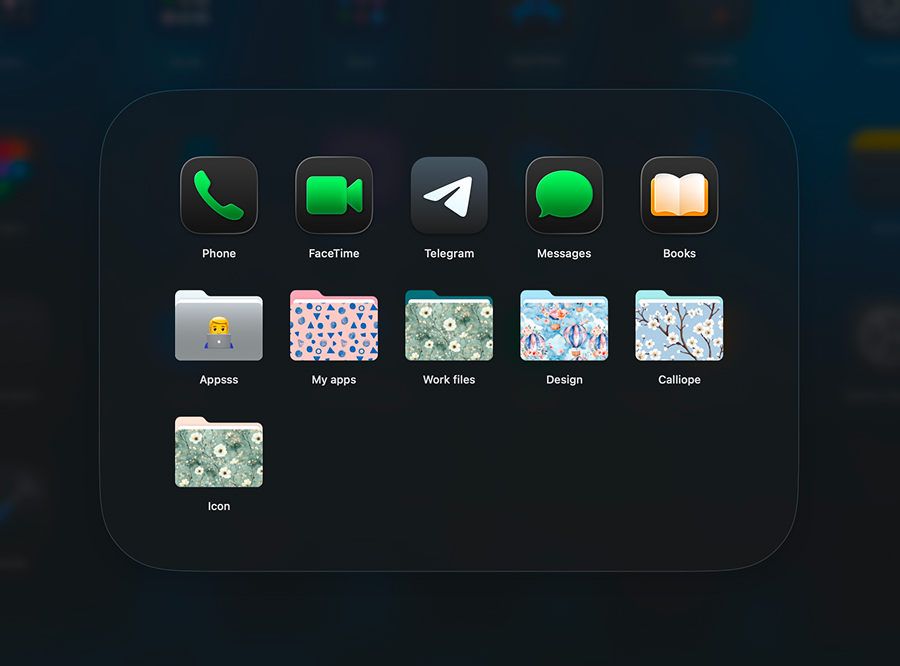
Edit / Delete folders
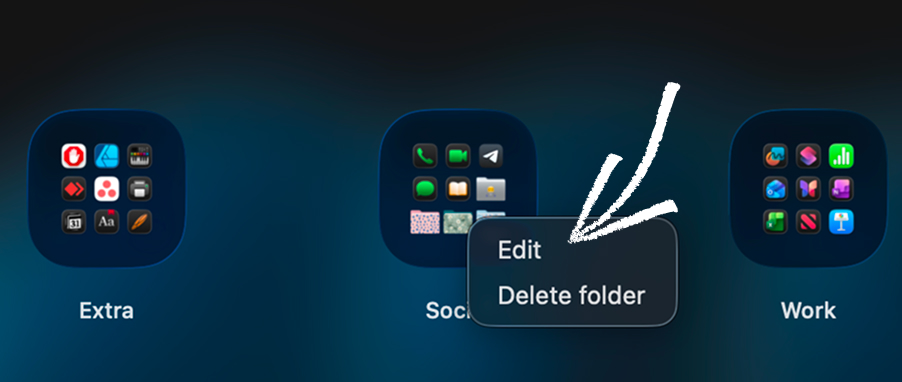
Right-click any folder icon and choose “Edit” to add or remove apps and Finder folders. Make your changes and click Save.
To delete an entire folder, right-click it and choose “Delete”. The apps will automatically move back to empty cells or the next page.
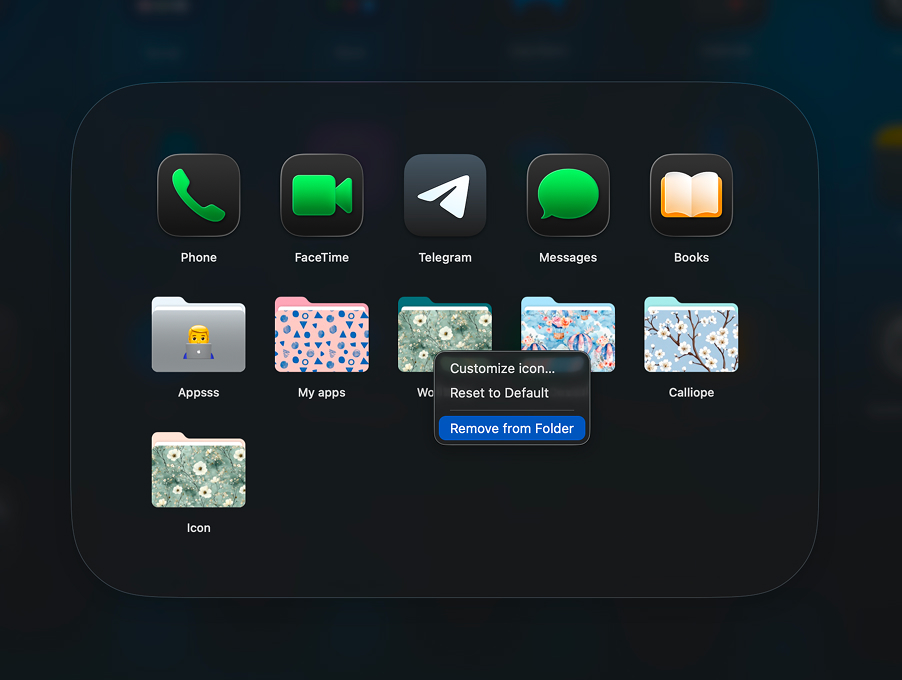
You can also remove an individual app or Finder folder by right-clicking the item and selecting “Remove from Folder”. The app returns to the grid and the Finder folder disappears from the list.
Files Folders Customization
Customize every Finder folder shortcut you add to LaunchMe. Change colors, icons, and covers so your file shortcuts match your workspace style.
Add Files Folders
You can add new Files Folders when creating or editing a LaunchMe folder. Use this to quickly jump into Finder locations without leaving LaunchMe.
When you create or edit a folder, go to the “Folders” tab and click “Add Folder”. Choose any Finder location and it appears in the list. You can learn how to customize the icons below.
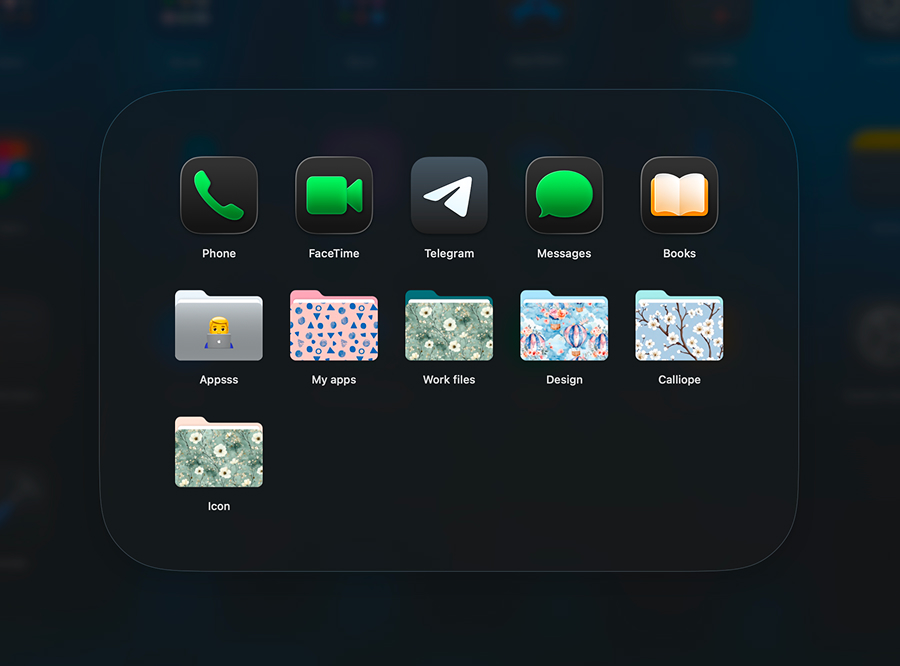
Files Folder Icon Customization
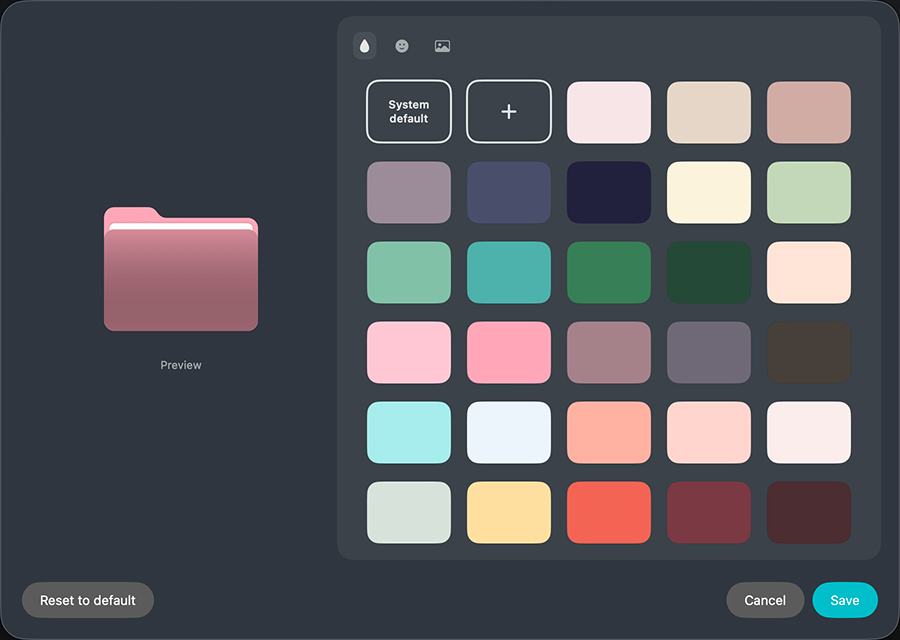
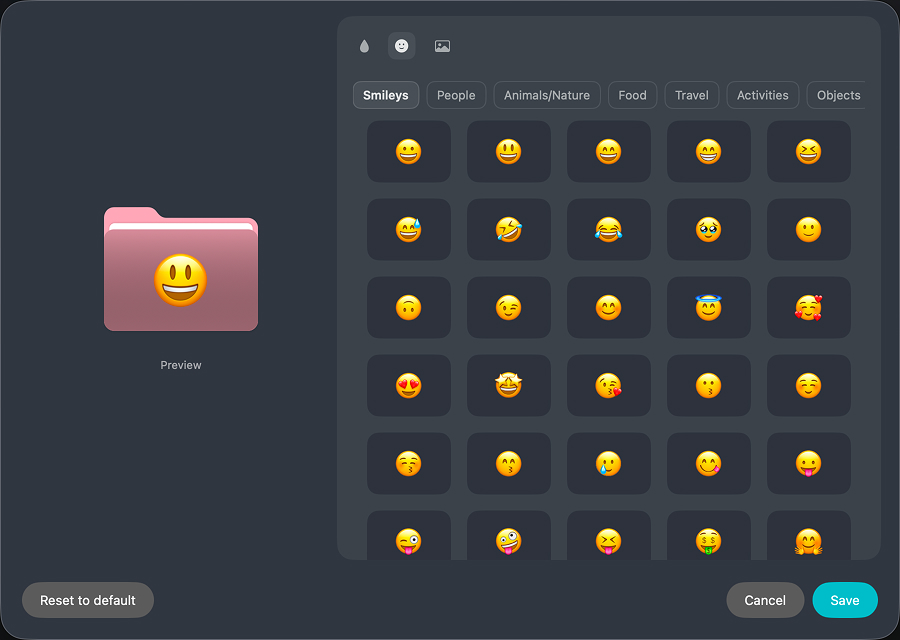
Change how Finder folders look inside LaunchMe. Choose colors, emojis, or custom images from the LaunchMe library—or upload your own cover.
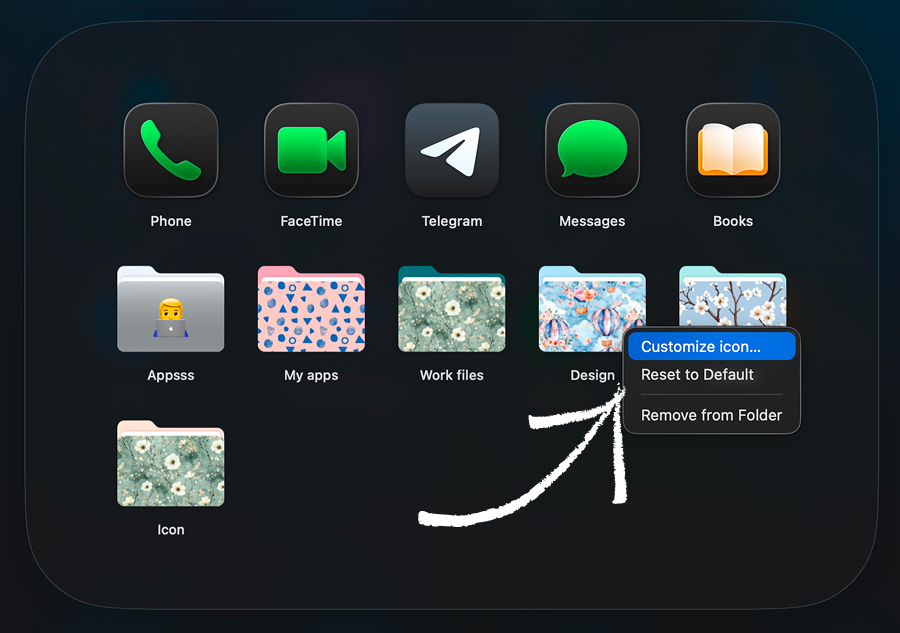
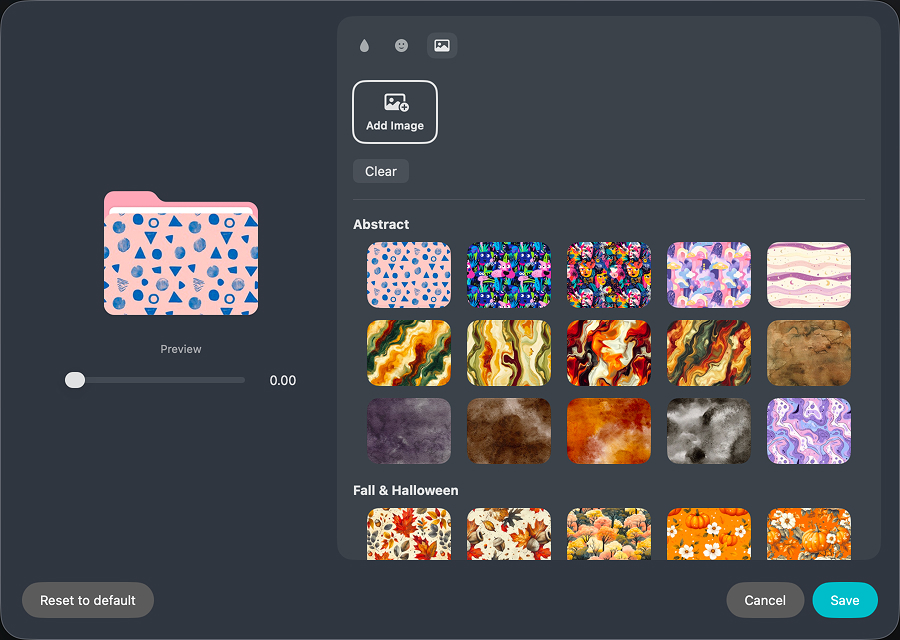
To customize a Files Folder icon, right-click it and choose “Customize icon”.
Select a color from the list or click “+” to enter a specific HEX value.
You can also pick an emoji for the folder cover.
Or set an image as the icon cover. Use LaunchMe’s built-in gallery or click “Add Image” to upload your own.
Wallpaper and Theme
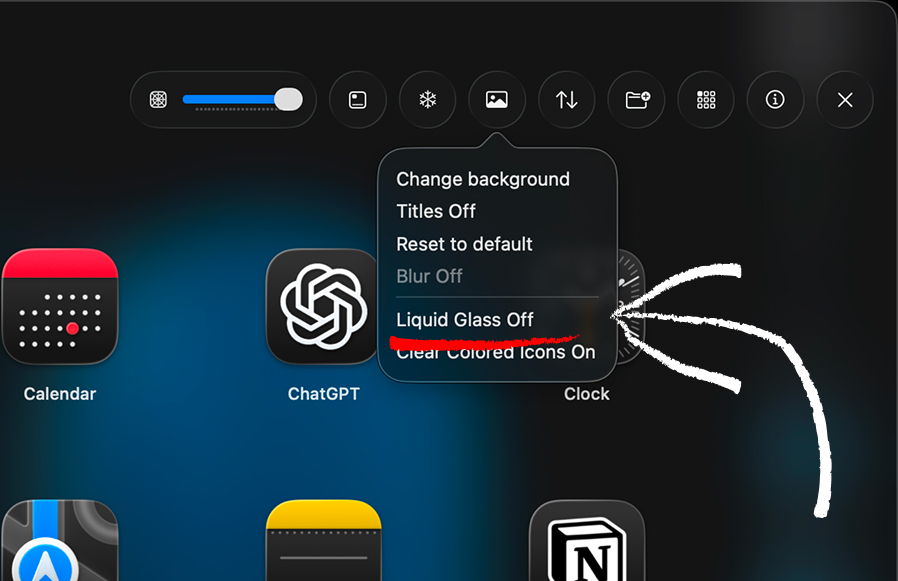
Liquid Glass or Flat Theme
In LaunchMe you can choose between Liquid Glass and Flat theme in the right top menu. Switching the theme affects interface elements, backgrounds, icons, and widgets.
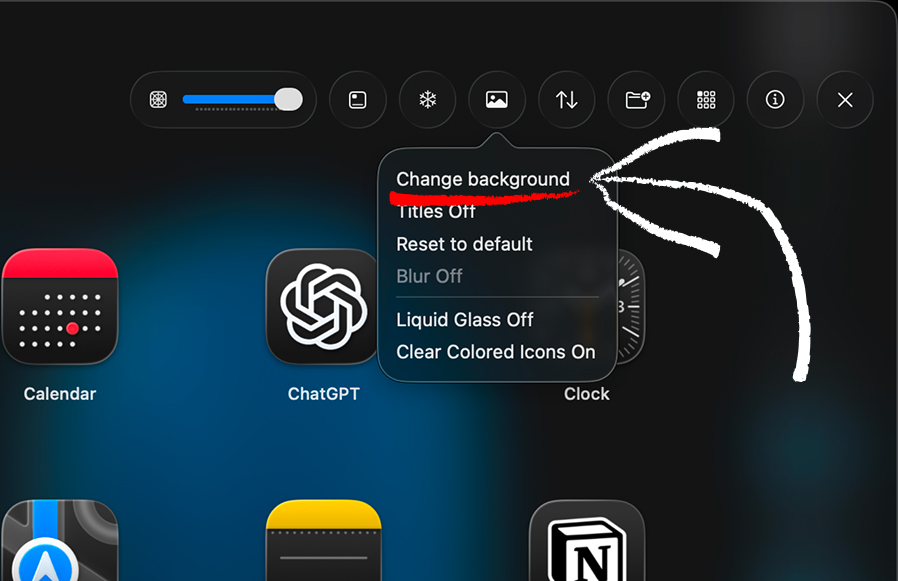
Simple Wallpaper
To set wallpaper click “Change background” in the top right menu. You can choose formats: JPG, PNG, HEIC.
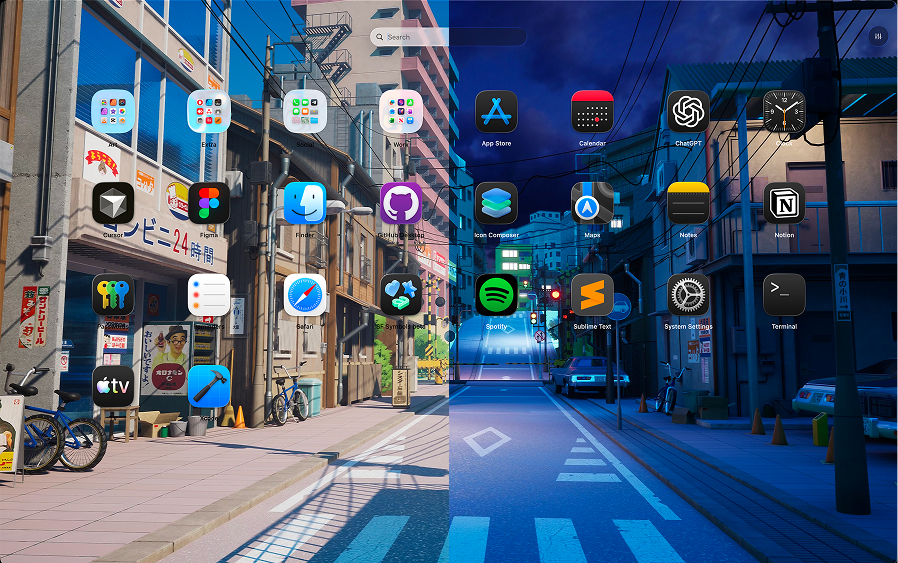
Dynamic Wallpaper
If you want to set Dynamic Wallpaper, choose an image in HEIC format prepared as a Dynamic Wallpaper. Your wallpaper will automatically change based on the system Dark or Light theme.
Live Wallpaper
To set Live Wallpaper, choose a video in MP4, MOV, AVI, or MKV format. Note: Video playback works only while the LaunchMe window is active. All video and animation pauses when the app is not active to avoid using extra resources.
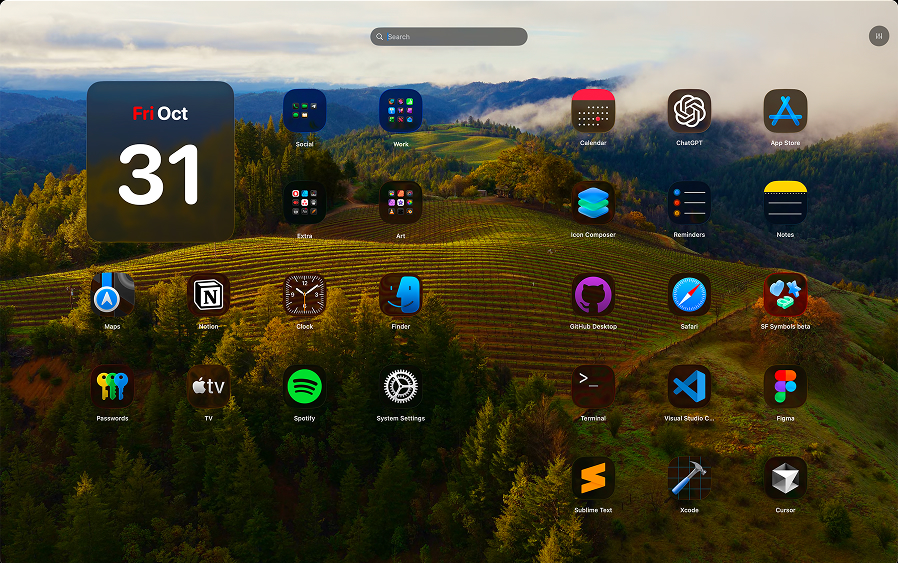
Wallpaper Blur Effect
You can enable Blur with any wallpaper. It gives a beautiful effect, especially with high-contrast Live Wallpapers.
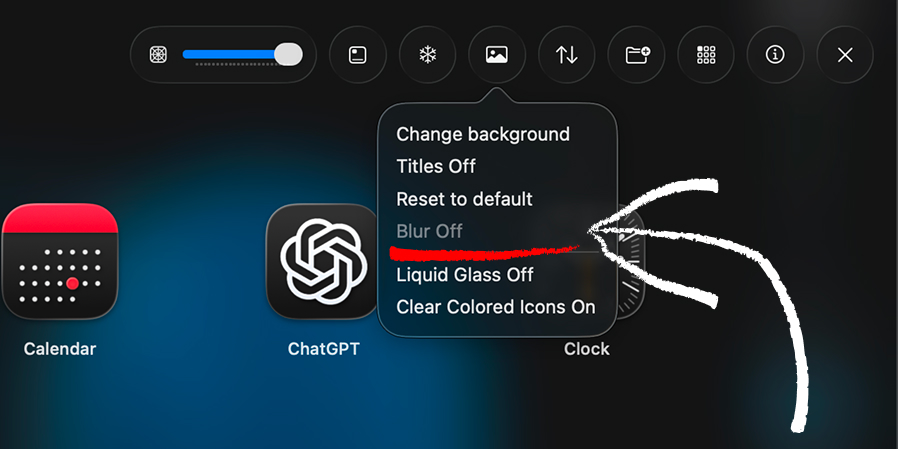
Custom App Icons
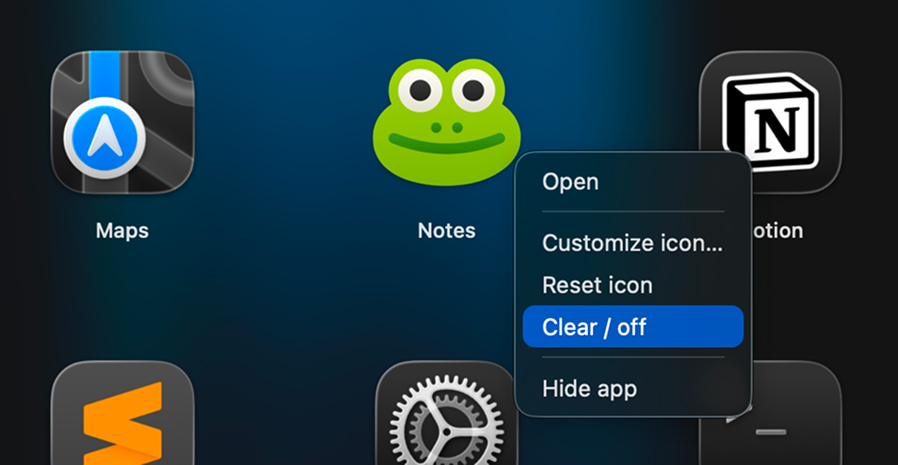
Swap app icons to match your theme. Use our Clear Colored pack or choose your own artwork to give LaunchMe a cohesive look.
Clear Colored icons
Choose the Clear Colored icons created by our team for the most popular apps. These icons automatically adapt to the system Dark or Light appearance.
Performance notice: Liquid Glass backgrounds for Clear Colored icons can increase GPU load because every icon renders a complex glass effect. We recommend this combo on newer Macs with Apple silicon. You can also keep Clear Colored icons but disable the Liquid Glass theme to maintain high FPS.
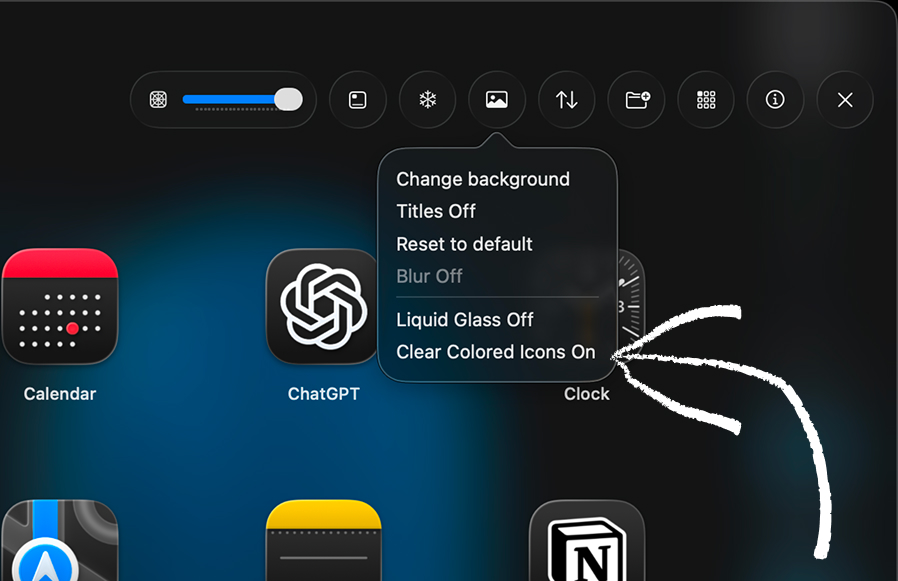
Custom App Icons
Set any image as an app icon. Right-click the app, choose “Customize icon”, and upload your PNG or JPG artwork (square 1:1 works best). LaunchMe automatically applies rounded corners.
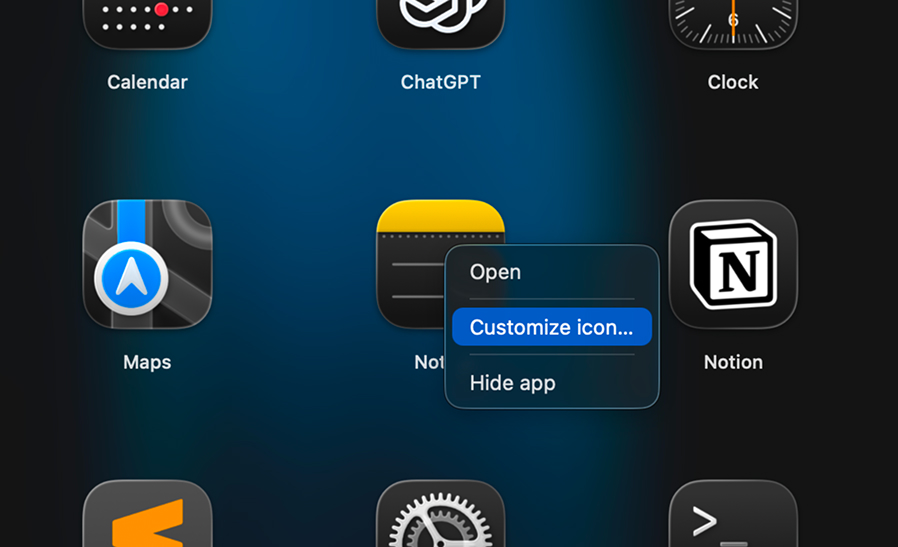
After assigning a custom icon, you can turn off the background, reset to default, or pick another image anytime via “Customize icon”.
Widgets
Widgets are amazing feature to customize LaunchMe the way you want. Right now we have widgets such as: Photo, GIF, Shaped Photo, Animations, Affirmation, Calendar.
To add widget: go to page where you want to add widget, click on “Add Widget” button and choose the widget you want to add. All widgets can be moved on the page in Edit Mode.
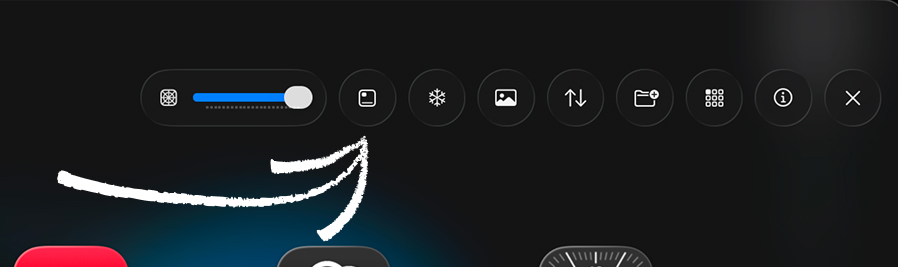
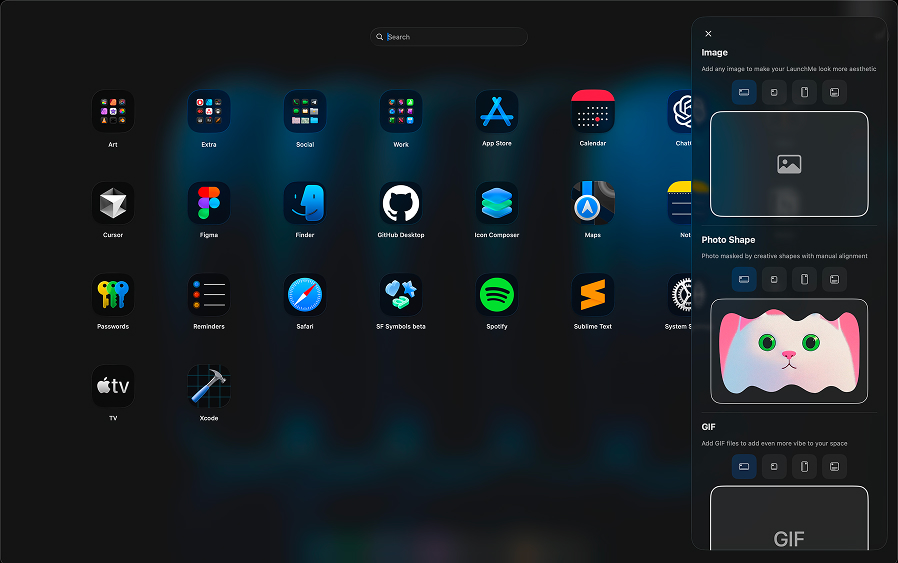
Photo Widget
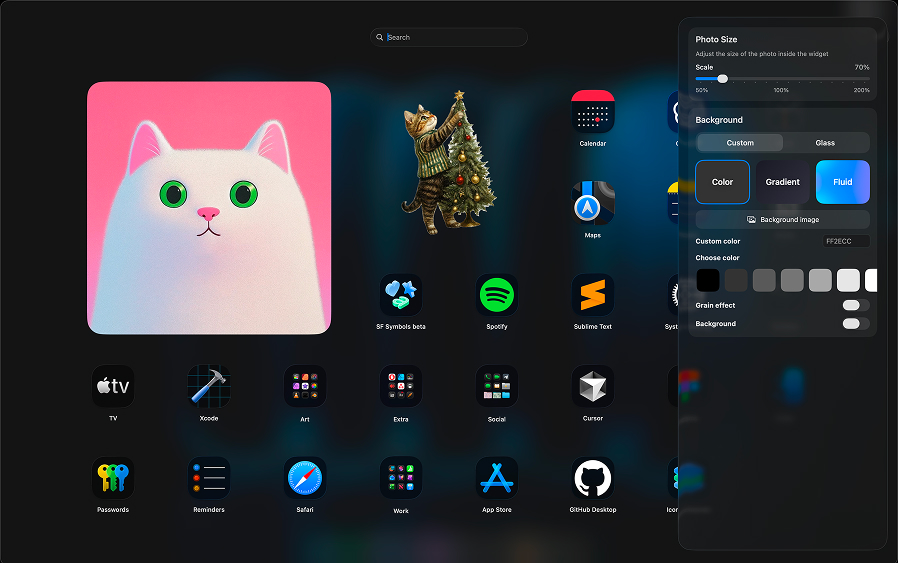
Photo Widgets have 4 sizes and support JPG and PNG with transparent background. You can adjust image size in the Edit Panel and also change background color and type for images with transparent backgrounds.
Shape Photo Widget
Shape Photo Widgets have 4 sizes and support JPG and PNG formats with transparent background. Choose a shape mask in the Edit Panel and adjust how the image fits inside.
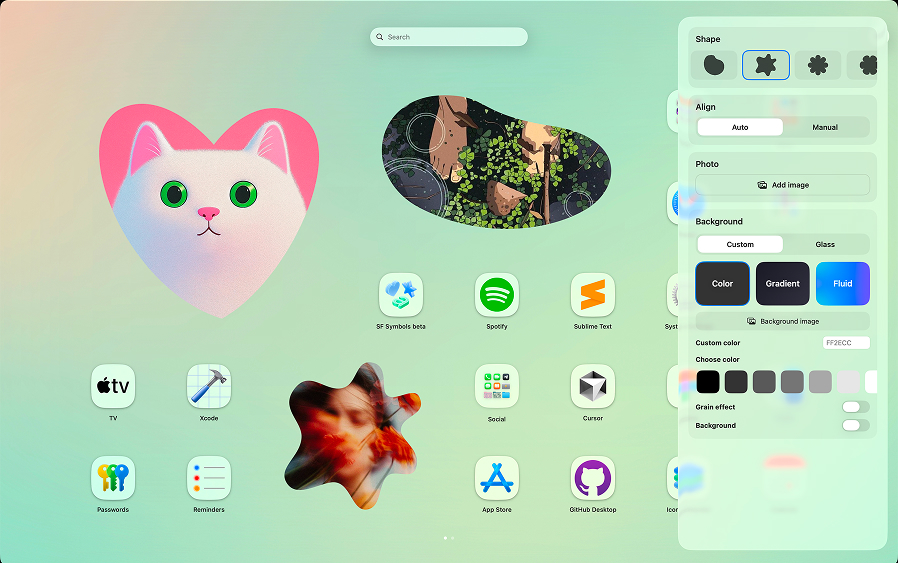
GIF Widget
GIF Widgets have 4 sizes and support GIF format with transparent background. Adjust GIF size in the Edit Panel and change background color or type for animations with transparent background.
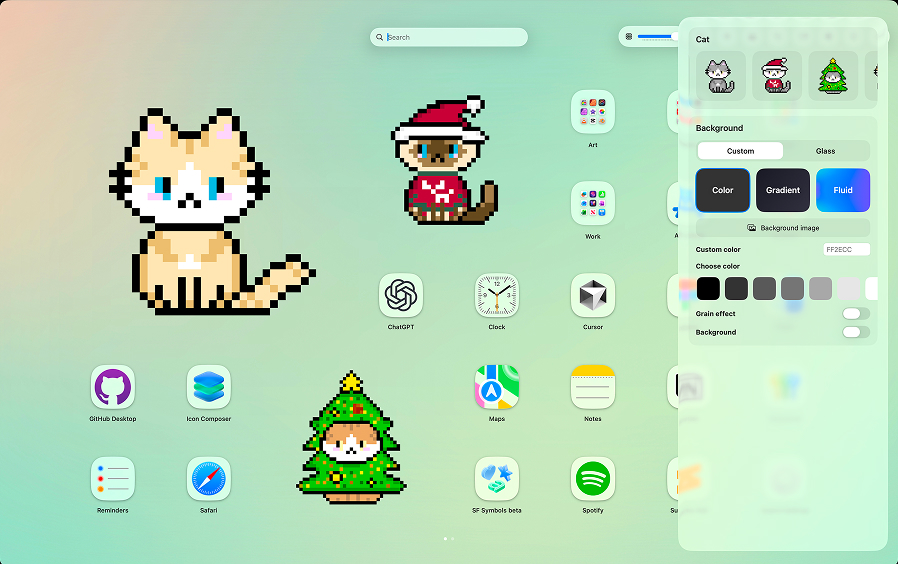
Animations Widget
Animations Widgets are made by LaunchMe Pixel Art. Right now we have 18 cat animations and will continue creating more animations in future updates.
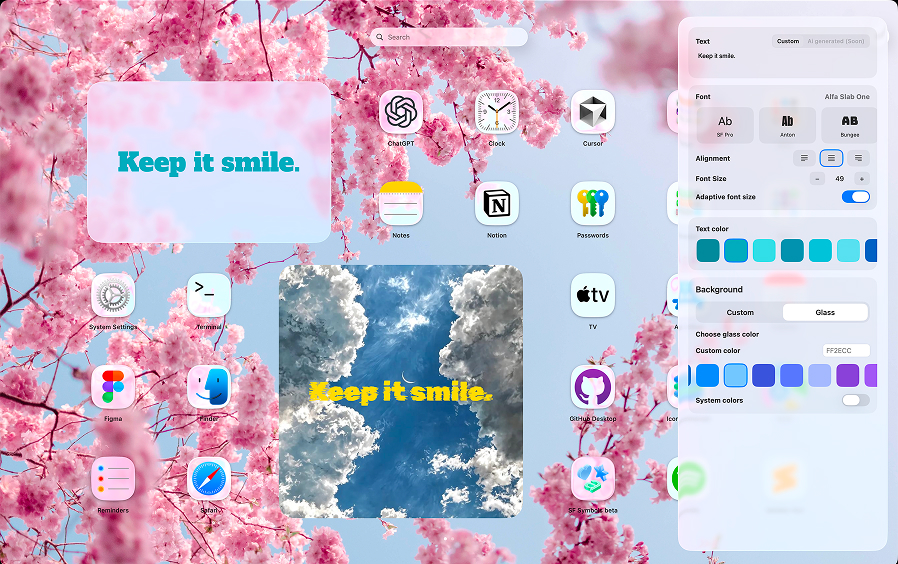
Affirmation Widget
Affirmation Widgets are available in 4 sizes. You can write any text, choose fonts, text size, text color, and background.
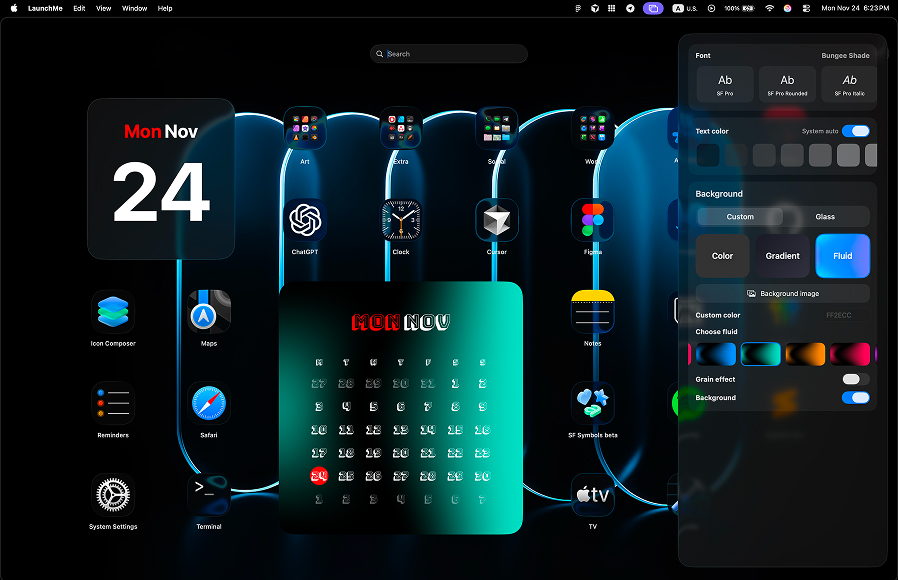
Calendar Widget
Calendar Widgets are available in 3 sizes. Choose fonts, text size, text color, and background styles.
Pinch Gesture
Three fingers pinch gesture
Apple doesn't allow to use their default Gestures feature and can not accept apps with this feature to the AppStore. But LaunchMe still have this feature. All you need is to download small background app that will activate 3 finger pinch to invoke LaunchMe. Its absolutely free!
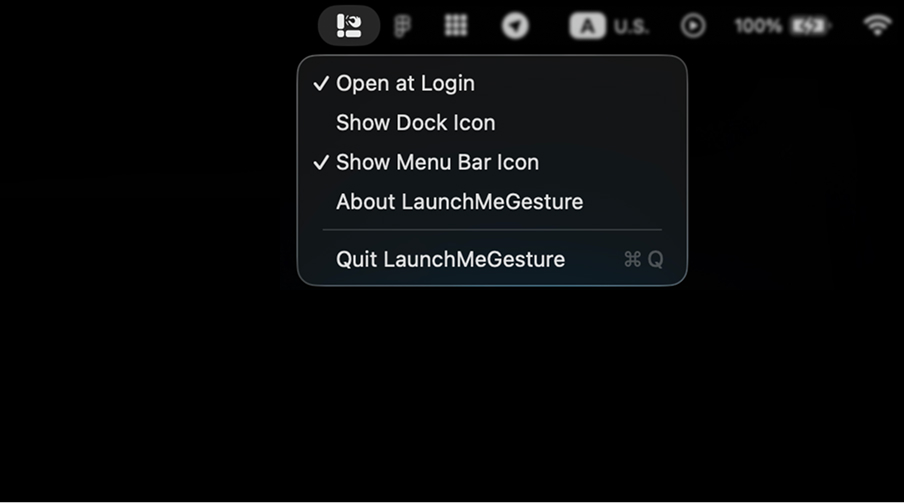
LaunchMe - Gestures settings
Open at Login - Allow app to launch with your Mac automatically on background.
Show Dock Icon - Hide or Show app icon in Dock. Its hidden by default.
Show Menu Bar Icon - you can hide app icon in Top Tool Bar, but after you will hide it you will loose access to menu with settings because its the only place to open Menu with settings. Make sure that you already setup all you need before hiding this icon.
Pricing
LaunchMe FREE
You can use LaunchMe for free. All the essentials you need to bring the classic Launchpad experience back to macOS 26 Tahoe are included. Paid plans exist only for users who want deeper personalization and advanced customization.
Free Trial
Try LaunchMe PRO with a 7-day free trial. Explore every PRO feature before you decide.
Lifetime PRO vs LITE
LaunchMe offers two lifetime options:
- PRO: Full access to wallpapers, folder customization, hide apps, hide titles, Liquid Glass Theme, widgets, and every future premium feature.
- LITE: Perfect if you mainly want Liquid Glass, Hide Apps, and Hide Titles while supporting ongoing development.
Managing your subscription
LaunchMe never collects your email or payment information. Apple handles every transaction and subscription via your Apple ID. Manage LaunchMe from your Apple Account > Subscriptions. If you lose access to your Apple ID, LaunchMe cannot reset or cancel your plan because we do not have access to those tools.